See Also
Adding Multiple Items from a Site Catalog
Many commercial items are identified with UPC's (Unique Product Codes). Any item with a barcode that is scanned in a store is probably using the UPC. Additionally, books have a special code known as an ISBN, and in Europe, EAN's are used to uniquely identify items. Many of these unique identifying numbers are stored as catalog items on eBay. If an item is a catalog item, much of the information about the item can be acquired by referencing the UPC, ISBN, or EAN.
SixBit can take advantage of these unique identifiers to provide a means of importing catalog items in a very fast, efficient manner. By specifying the UPC, ISBN, or EAN and searching for the item using our Item Research tool, SixBit can retrieve the catalog information from the sites and create a new item record in only seconds.
See Using the Item Research Tool for more information.
 |
This following process is demonstrated in our video "Adding Catalog Items using Templates" |

To add catalog items in bulk:
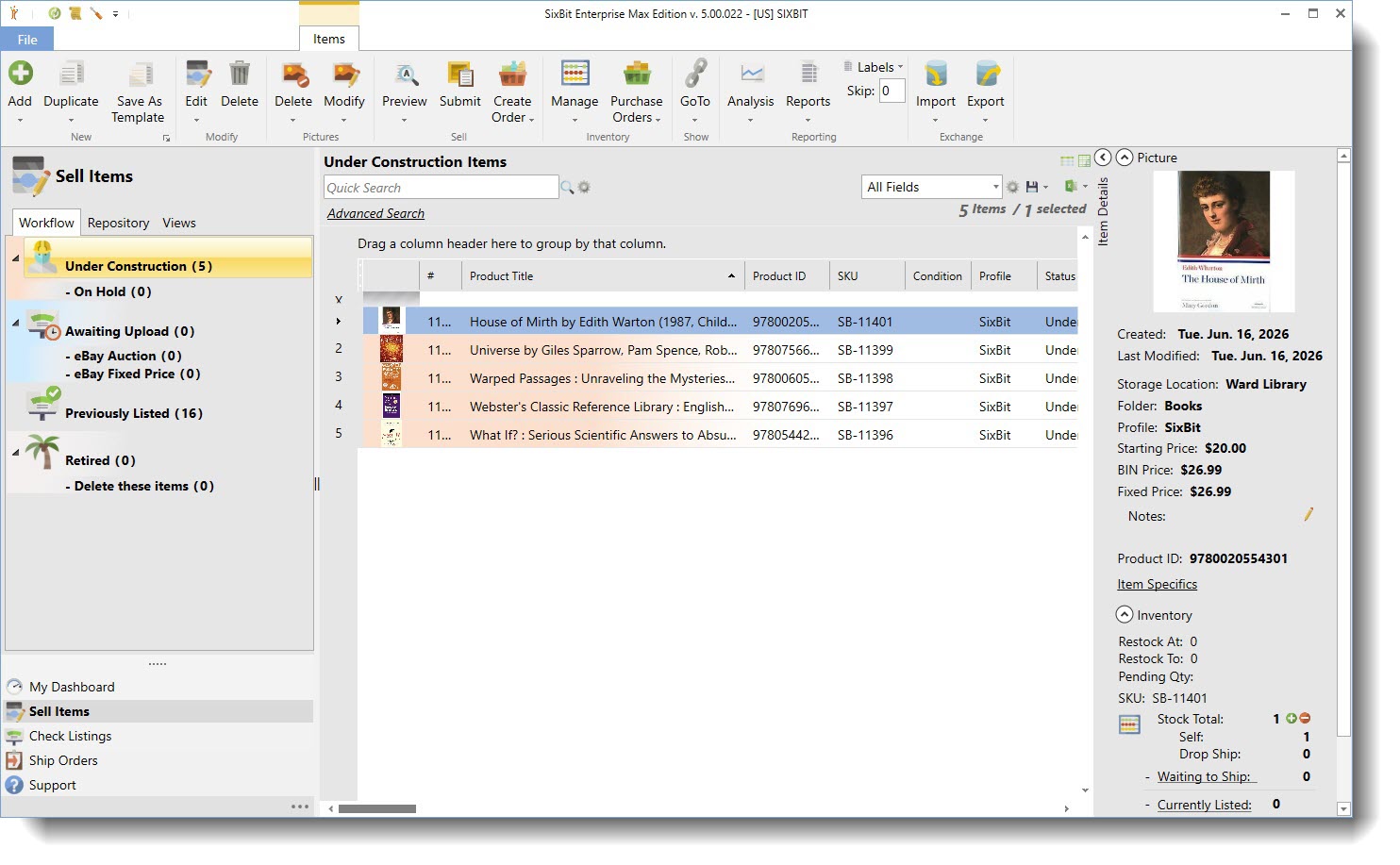
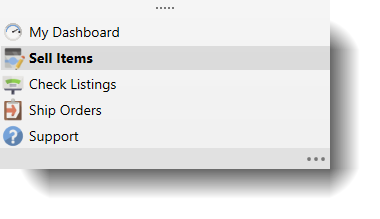
- Open the Sell Items mode. How?How? From the Mode selector in the lower left, choose Sell Items.
- Click the arrow under the Add button in the ribbon bar and choose Catalog Items.

- On the Add Multiple Catalog Items window you can select a default item template from your existing templates. Selecting an item template will provide all the item fields not provided by the search in the eBay catalog. See Managing Item Templates for more information.

- Enter the Product Identifiers for the items. A barcode scanner is a fast way to enter a lot of values quickly. Refer to Barcode Scanners for more info on using scanners with SixBit. Values can be entered one per line, or multiples on a line separated by commas. The Import Identifiers button can be used to import a list of values from a file.

Options
What they do
Choose a default item template Allows users to use an existing item template for the catalog import Use Stock Photo Add the catalog image to the item Use Stock Photo As Gallery For use in conjunction with the Gallery Plus listing upgrade Always overwrite title with catalog results Overwrites the title using the title from the catalog entry Enter or Import Product IDs Enter Product IDs here Create SixBit item for products not found in catalog Will create an item with the product ID if a catalog entry is not found Import Identifiers Allows users to import Product IDs from a file (must be one per line or separated by commas) - Click OK. SixBit will search the site catalogs for the items and merge the catalog information with the default item template to create new items. When listing on multiple sites, the catalog on each site will be searched and all data possible will be imported.